- Open Outlook.
- Type in your email address, then select Connect.
- Type in your password and select OK.
If you want to add an additional account, select File > Add Account and repeat the steps.
Introduction to Outlook for Beginners
Microsoft Outlook is a powerful email and productivity tool that helps users manage their emails, calendars, contacts, and tasks efficiently. In this beginner-level introduction, participants will learn the fundamentals of Outlook, including how to send and receive emails, organize messages using folders, schedule appointments and meetings with the calendar, create and manage contacts, and utilize basic task management features.
This course will provide step-by-step guidance on navigating Outlook’s interface, customizing settings to improve workflow, and implementing best practices for email communication. By the end of the course, learners will have the essential skills needed to use Outlook confidently in both personal and professional settings.
With Outlook on your PC, Mac, or mobile device, you can:
If you want to add an additional account, select File > Add Account and repeat the steps.
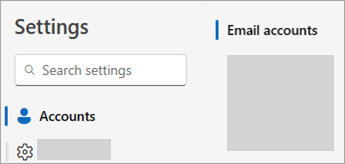
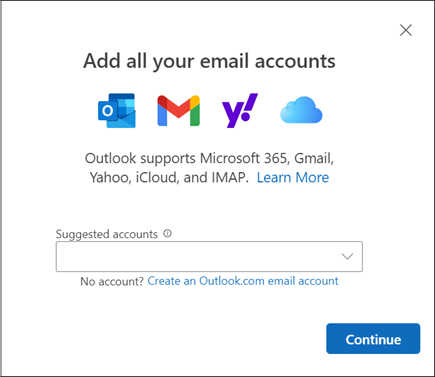
Note: Some non-Microsoft email providers, like Gmail, Yahoo, and iCloud, require you to change some settings on their websites before you can add these accounts to Outlook.
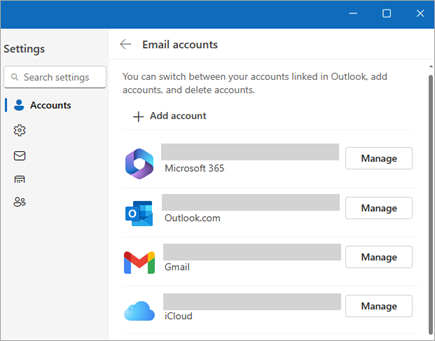
Note: This step only removes the account from the Outlook app, it doesn’t delete the account. To delete an account, get help from your email provider.
Select Send.
If you have multiple signatures, go to Choose default signature and select the one you want to appear on New messages. You can always change to another signature when writing the the email.

Tip: When you’re attaching a file stored in OneDrive or SharePoint, pick how you want to share the file: a link or Attach as copy. Right-click online docs to Change Permissions for editing or viewing.
If you’re using the Microsoft Outlook app or Outlook.com, and if you and your recipients are all on Microsoft Exchange or Microsoft 365 and in the same organization, you can recall or replace an email message that you sent.
Important: If your account is a MAPI or POP account, recall won’t work.